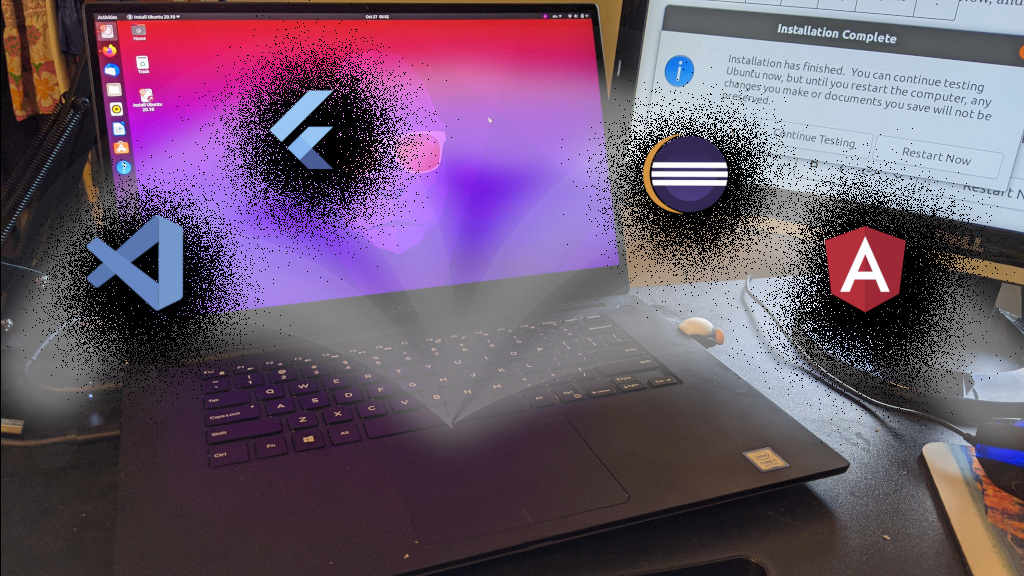
This is my last post for my Ubuntu 20.10 install. Below is my notes for installing all of the programming-related apps and tools that I like to have available.
Category: Java
Ubuntu 16.04 — Programming Tools
This is a continuation of my notes on installing Ubuntu 16.04. In this post, I install the programs that I use for programming and technical work.
Series Navigation:
- Previous: Productivity Apps
- Next: Media Programs
- Series Overview
Ubuntu 15.04 — Programming
This is a continuation of my series of notes on my install of Ubuntu 15.04 on my laptop. The full list of posts is on this page. Previously, in the last post, I installed some media programs. In this post, I’ll install the programming tools that I use.
Gvim
I really like using the Gvim text editor for many editing tasks. It’s not a full fledged IDE, but it’s great for single files. It’s a simple install from the Software Center — the vim-gnome package.
I have some plugins in my plugin directories and a customized configuration. So, I restored my ~/.vim directory and /.vimrc. I changed the directory for the backup files as well. I have this in my .vimrc:
set bdir=~/.vimtmp
set directory=~/.vimtmp
So, I needed to create a ~/.vimtmp directory.
Git
I use Git for tracking my source code changes for a few projects. I don’t work in it that much, so it is nice to have a GUI for certain things. The git-cola package has done that nicely in the past. Installing it also installs the actual git application.
Brackets
I used WebUpd8’s repository to install Brackets:
sudo add-apt-repository ppa:webupd8team/brackets
sudo apt-get update
sudo apt-get install brackets
After installing the main application, I installed the “Brackets Git” plugin.
Node JS
I have been doing a bit of web programming, and Node JS seems to come up constantly. For example, everything wants to be installed with bower. I tried to use Bower PHP for a bit, but I quite fighting it. I’ll just install bower even if I don’t have it on my website. I shouldn’t be developing there anyway.
So, this installs: Node JS, the NPM installer, Bower, and Protractor
sudo apt-get install nodejs
sudo ln -s /usr/bin/nodejs /usr/bin/node
sudo apt-get install npm
sudo npm install bower -g
sudo npm install -g protractor
Note: For some reason, the package installs node as nodejs. I had to run the ln command to make a link to node. Bower wouldn’t work without that.
Here are the versions:
$ nodejs --version
v0.10.25
$ bower --version
1.5.2
$ protractor --version
Version 2.2.0
I found that version 0.12 is released, and there are some nice instructions for installing that. I didn’t go down that path.
Java
sudo add-apt-repository ppa:webupd8team/java
sudo apt-get update
sudo apt-get install oracle-java7-installer
sudo apt-get install oracle-java8-installer
I installed the Oracle 8 installer because SQL Developer says it needs it.
Soap UI
Downloaded from the Soap UI website. Ran
sh SoapUI-x64-5.2.0.sh
Note: didn’t use sudo.
To test from the command-line:
/bin/sh “/home/skp/SmartBear/SoapUI-5.2.0/bin/SoapUI-5.2.0”
I got a core dump, so I tried this:
JAVA_TOOL_OPTIONS="" /bin/sh "/home/skp/SmartBear/SoapUI-5.2.0/bin/SoapUI-5.2.0"
I updated my shortcut with MenuLibre to include that variable:

After that, it worked just fine.
JavaFX Scene Builder
Apparently, the Scene Builder from Oracle is gone. Instead Gluon has taken on maintaining a fork of the Scene Builder. They now offer a Linux Deb file on their Download Page.
Ubuntu Make: Eclipse & Android
Since the last time I installed Eclipse, Ubuntu has now come out with Ubuntu Make. So, I decided to give that a whirl.
I ran these commands
sudo apt-get install ubuntu-make
umake ide eclipse
umake android
The only question that it asked was the path where to install…
Choose installation path: /home/skp/tools/ide/eclipse
Choose installation path: /home/skp/tools/android/android-studio
I was a little disappointment. On the Eclipse Download page, it looks like the version is a little behind.

After opening Eclipse, I installed the plugins from Help > Install New Software. (using Luna – http://download.eclipse.org/releases/luna):
- Collaboration > Command Line Interface for Java Implementation of Git
- Collaboration > Eclipse Git Team Provider
- Collaboration > Eclipse GitHub Integration with task focused interface
- Collaboration > Java Implementation of Git
- Collaboration > Java Implementation of Git – optional Java 7 libraries
- Collaboration > Mylyn Context Connector: Eclipse IDE
- Collaboration > Mylyn Context Connector: Java Development
- Collaboration > Mylyn Context Connector: Plug-in Development
- Collaboration > Mylyn Task List
- Collaboration > Mylyn Task-Focused Interface
- Collaboration > Mylyn Versions Connector: Git
- General Purpose Tools > Swing Designer
- General Purpose Tools > Swing Designer Documentation
- Web, XML, Java EE and OSGi Enterprise Development > Eclipse Web Developer Tools
- Web, XML, Java EE and OSGi Enterprise Development > Eclipse Java Web Developer Tools
- Web, XML, Java EE and OSGi Enterprise Development > Eclipse XML Editors and Tools
- Web, XML, Java EE and OSGi Enterprise Development > Javascript Development Tools
- Web, XML, Java EE and OSGi Enterprise Development > PHP Development Tools
Finally, to make developing with Java FX easier, I installed the e(fx)clipse plugin for Eclipse. Their install page is pretty good and detailed.
I just added two sites to Window > Preferences under Install/Update > Available Software:
- http://download.eclipse.org/efxclipse/updates-released/2.1.0/site
- http://download.eclipse.org/modeling/tmf/xtext/updates/composite/releases/
- http://download.eclipse.org/efxclipse/updates-released/2.0.0/site
- http://download.eclipse.org/efxclipse/updates-released/1.2.0/site
On the Install Dialog (Help > Install Software), I picked e(fx)clipse – install > e(fx)clipse – IDE. Then, I just let it do it’s thing.
I can’t get the 2.0 or the 2.1 versions to install in Luna. I had to install the 1.2 version.
SQL Developer
I downloaded SQL Developer from Oracle’s SQL Developer website. They are on version 4.1.1.19.59 now. I downloaded the “Other Platforms” version. Then, I used the sqldeveloper-package program to install it.
sudo apt-get install sqldeveloper-package
make-sqldeveloper-package -b output \
       sqldeveloper*.zip
sudo dpkg -i sqldeveloper*all.deb
Note: on my first attempt, I got this error:
dpkg-checkbuilddeps: Unmet build dependencies: debhelper (>= 7)
I fixed that with:
sudo apt-get install build-essential
Meld
Meld is an important tool for comparing text files. I use it mostly for comparing source code or programming-related projects, so it fell under this category. It’s an easy install from the Software Center.
Resources
SmartBear Community: Soapui not starting on Ubuntu 15.04
WebUpd8: FIX MISSING LIBGCRYPT11 CAUSING SPOTIFY, BRACKETS AND OTHER APPS NOT TO WORK / INSTALL IN UBUNTU 15.04
Stackoverflow: Where is the JavaFX scene builder gone?
WebUpd8: UBUNTU DEVELOPER TOOLS CENTER RENAMED TO UBUNTU MAKE, SEES NEW RELEASE
Ubuntu Wiki: ubuntu-make
StackOverflow: Installing Bower on Ubuntu
Java Security Exception Site for WebEx
I’ve been having trouble opening WebEx because of a Java error message. The “security settings have blocked the application”. Here’s what I did to fix it…
Error message:
Your security settings have blocked an application signed with an expired or not-yet-valid certificate from running.
Ubuntu 13.10: Programming/Editors
This post is part of my install notes for my Ubuntu 13.10 setup.
These are the steps that I took to set up my programming environment. Since I dabble in a myriad of different little projects, I need a myriad of different tools.
Ubuntu 13.04 Java
These are just some quick notes on the various Java programs that I install. I’m sorry the notes are not very complete. I’ll do better next time, but I thought these notes might still have some value.
My Server Configuration
These were the steps that I went through to configure my server after installing Ubuntu. (just to help remember)
Installing SSH
My first requirement for a server is that I be able to get to it from my laptop. SSH will allow me to both open remote terminal sessions and copy files from nautilus.
I simply installed this ssh metapackage from the Software Center.

My first attempt to connect brought me this message:
@@@@@@@@@@@@@@@@@@@@@@@@@@@@@@@@@@@@@@@@@@@@@@@@@@@@@@@@@@@
@ WARNING: REMOTE HOST IDENTIFICATION HAS CHANGED! @
@@@@@@@@@@@@@@@@@@@@@@@@@@@@@@@@@@@@@@@@@@@@@@@@@@@@@@@@@@@
IT IS POSSIBLE THAT SOMEONE IS DOING SOMETHING NASTY!
Someone could be eavesdropping on you right now (man-in-the-middle attack)!
It is also possible that a host key has just been changed.
This was because I was reinstalling my server, and I had connected to the previous installation with my laptop. The fix was easy (it was actually in the message):
ssh-keygen -R israel
To set it up to where I could connect without a password, I ran this command:
ssh-copy-id israel
Printing
I have an HP printer, so I chose to install the HPLIP Toolbox from the Software Center.

I could launch it through ssh with the command “hp-toolbox”. Then, I chose the Setup Device option off the Device menu for my printer.

I selected USB:

Then, I selected the device:

Then, I entered the information about the printer:

This added, the printer. Next, I made it the default printer:

To make the printer accessible over the network, I had to tweak the cups configuration. I edited the /etc/cups/cupsd.conf. I added a Listen line with the machine’s hostname.

I also turned “Browsing” on to make it easier to discover the printer.

To make the network name resolve correctly, I removed this line from /etc/hosts:

Finally, I restarted the cups service with the command:
sudo service cups restart
That gave me some access, but I still had issues. Then, I found an easier way to do it. I ran the the printer configuration:
system-config-printer
On the printer dialog, there is a Server > Settings option.

There, I checked the sharing options to open things up for my private network.

Java Installation
I have a personal application that I use at home, and Java is a requirement for that. I took the easy route and installed Java using Web Upd8’s method. That just meant running these three commands:
sudo add-apt-repository ppa:webupd8team/java
sudo apt-get update
sudo apt-get install oracle-java8-installer
I confirmed that it installed with:
skp@israel:~$ java -version
java version "1.8.0-ea"
Java(TM) SE Runtime Environment (build 1.8.0-ea-b55)
Java HotSpot(TM) Client VM (build 24.0-b22, mixed mode)
skp@israel:~$ javac -version
javac 1.8.0-ea
Finally, I needed to add a mysql user. I don’t need to install mysql because it’s embedded into my application, but I do need the user. I used this command:
useradd -r mysql
Resources
Eclipse + JavaFX
I just ran across a couple of encouraging comments on the Net…
Here’s the first link:
Announcing JavaFX Scene Builder Public Beta
I found this in the comments:
Is Scene Builder going to be integrated with Netbeans and Eclipse in future?
Ya, we designed it so that the SceneBuilder could be embedded in IDEA, Eclipse, and NetBeans. Obviously we’ll be doing the work on NetBeans and hopefully Thomas or somebody in the community will plug it into Eclipse
I also found this ticket. (Maybe something to watch?)
efxclipse.org Trac:Ticket #120 (new enhancement)
That project has an installation page. I’ll have to try that out. For now, let me just write it down…
I did find a nice tutorial for using JavaFX with Eclipse (its a little old because it doesn’t list Linux):
The Linux files are here:
Index of /general/javafx/eclipse/
And, while I am at it, I want to use Swing with JavaFX, and this tutorial looks like a great place to start:
Ubuntu 12:04: 32-bit Java Browser Environment
I used to call this installation my WebEx environment. WebEx has a requirement for a 32-bit Java installation. But, I found a few more needs for a 32-bit Java/browser such as a Juniper VPN.
Basically, I just did a variation on my older post about WebEx.
Here’s how I set it up:
Ubuntu 12.04: Installing Java from Runtime to Complete Development Environment
Installing Java was pretty straightforward and easy this go-around. Since the runtime was so easy, we’ll let this post go through installing all the different pieces for a complete development environment: Eclipse, Android SDK, JavaFX SDK, etc.
So, here’s what I did…